Start with Playwright MCP if you need a local, predictable browser automation server for testing, scraping, or repeatable agent workflows.
Choose a different server when the browser context matters more:
- Browserbase MCP: managed cloud browsers
- mcp-chrome: an existing logged-in Chrome session
- Browser Use MCP: persistent profiles and longer-running tasks
- Webfuse MCP: live customer sessions where the agent acts inside the user's active browser
- Chrome DevTools MCP: debugging, performance audits, console logs, and network traces
Model Context Protocol (MCP) gives AI hosts a standard way to call external tools such as browsers, databases, and local files through a client-server model. For a faster protocol overview before comparing servers, start with our MCP Cheat Sheet.
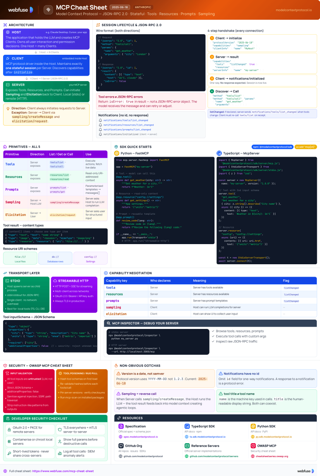
MCP Cheat Sheet
Quick reference for MCP architecture, tools, resources, prompts, and secure transport choices.
View cheat sheetQuick Comparison
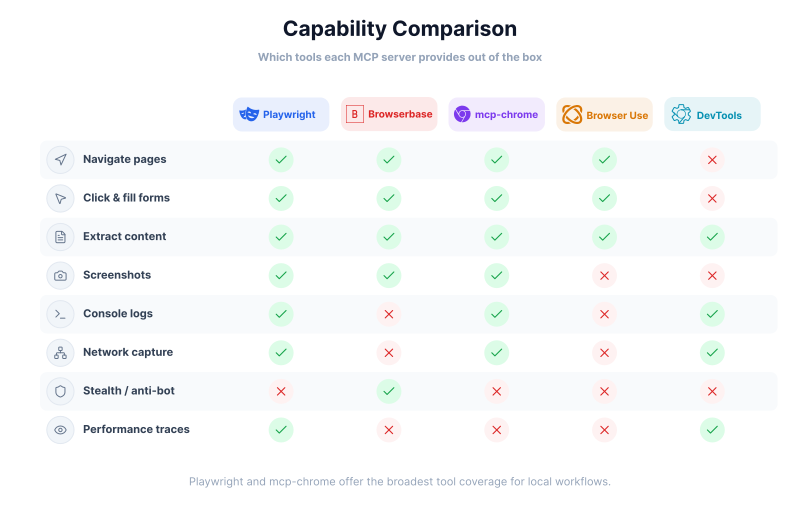
| MCP Server | Best For | Main Tradeoff |
|---|---|---|
| Playwright MCP | Local browser automation with predictable control | You manage the local runtime and browser dependencies |
| Browserbase MCP | Managed cloud browsers for higher-volume agent workflows | Adds platform cost and an external service dependency |
| mcp-chrome | Using an existing Chrome session with active logins and open tabs | Requires a local bridge and browser extension |
| Browser Use MCP | Persistent profiles, saved sessions, and longer-running browser tasks | Adds more orchestration and profile management |
| Webfuse MCP | Live customer sessions where the agent acts inside the user’s active browser | Built for in-session workflows, not headless batch jobs |
| Chrome DevTools MCP | Debugging, performance audits, console logs, and network traces | Narrower fit for general multi-step automation |
How MCP Works
MCP uses a client-server architecture where an AI host connects to servers that expose browser actions as callable tools. The host handles the model, the server handles the browser, and the two communicate over JSON-RPC 2.0. In practice, that lets an AI navigate pages, click buttons, fill forms, and extract data without custom glue code.
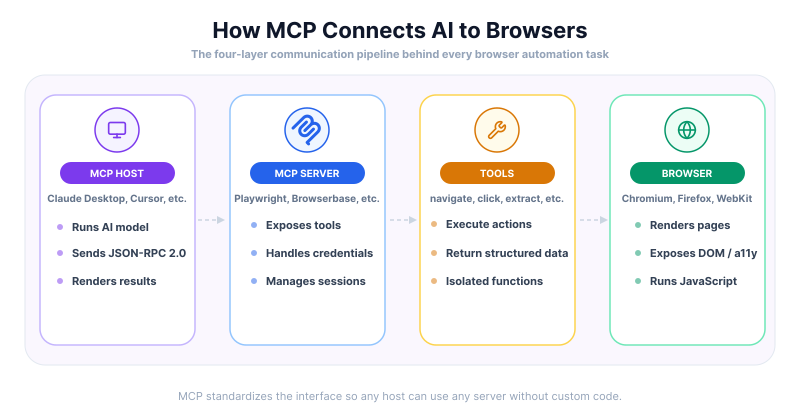
Standardizing these interactions helps developers avoid writing custom code for every new integration. By 2026, major companies such as Microsoft and Google had publicly shown support for MCP through integrations and ecosystem work, helping agents connect to live tools and data sources.
- Standardized Integration: Uses JSON-RPC 2.0 to create a predictable way for models to talk to external data.
- Context Efficiency: Servers provide the AI with only the data it needs to complete a task.
- Agentic Workflows: Supports multi-step actions like filling forms or scraping data.
- Secure Access: Keeps credentials and sensitive data on the server side rather than in the model prompt.
Playwright MCP Server (Microsoft)
Microsoft built Playwright MCP as a practical bridge between AI hosts and modern browsers. It uses Playwright for navigation and interaction, then packages page state for the model in a structured format. The result feels closer to reliable test automation than experimental agent tooling. If you are still deciding whether Playwright is the right automation foundation, see our comparison of Playwright vs Puppeteer for AI agent control.
Instead of sending raw HTML or screenshots for every step, the server relies on accessibility snapshots. That gives the model a structured, token-efficient view of the page while preserving enough detail for forms, buttons, and navigation. It also supports multiple browser engines, including Chromium, Firefox, WebKit, and Microsoft Edge, and runs on Node.js 18 or higher.
Available Tools for Browser Interaction
The server exposes a focused set of tools for the core browser actions most agents need.
- browser_navigate: Visits a specific URL and waits for the page to load.
- browser_click: Simulates a mouse click on an element identified by a selector.
- browser_fill_form: Inputs text into form fields or text areas.
- browser_snapshot: Captures the current state of the page using the accessibility tree.
- browser_console_messages: Retrieves logs from the browser console to check for errors.
- browser_network_requests: Monitors data moving between the browser and the server.
- browser_verify_element_visible: Confirms if a specific button or text appears on the screen.
Simple Integration and Configuration
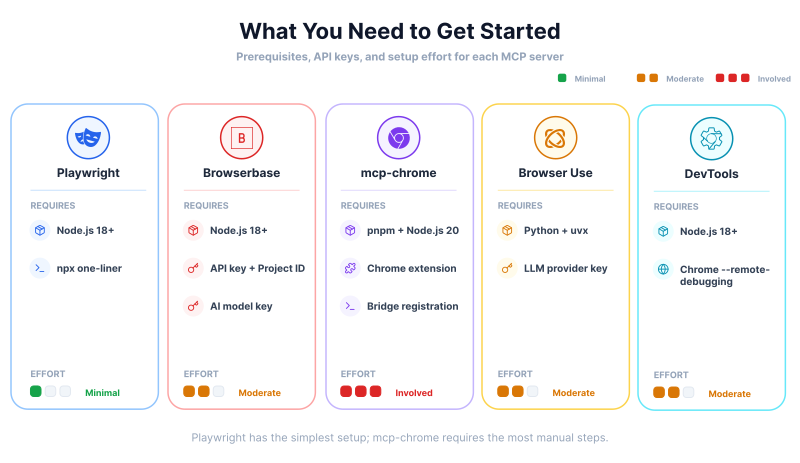
Setup is straightforward if you already have Node.js. Most users run it through npx and add a small MCP entry in their client config. In current releases, Playwright MCP can also expose an HTTP MCP endpoint directly, which makes local connection simpler for clients that prefer URL-based configuration.
{
  "mcpServers": {
    "playwright": {
      "command": "npx",
      "args": ["-y", "@playwright/mcp@latest"]
    }
  }
}
Docker is a good fallback if your local machine does not already have the browser dependencies Playwright needs. The official Microsoft image includes the required drivers. Use docker run -i --rm mcr.microsoft.com/playwright/mcp to start it.
Practical Implementation Process
A typical flow is simple: navigate, take a snapshot, act, then verify with another snapshot.
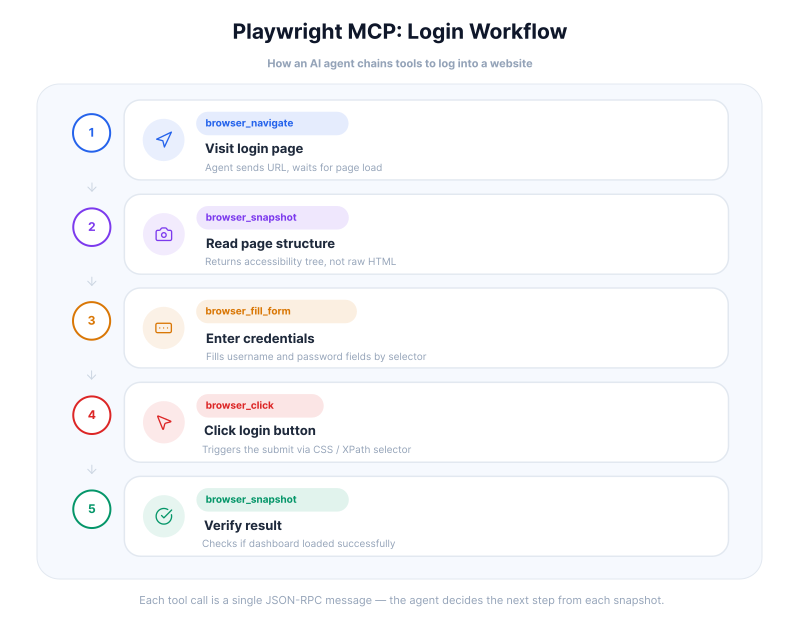
For example, logging into a site usually means identifying the username and password fields from the snapshot, filling them, clicking the submit button, and checking the next snapshot to confirm the dashboard loaded.
Testing and Debugging the Server
Most debugging comes down to selector failures, timeouts, or popups. Headed mode helps because you can see where the agent clicks and where it gets stuck.
The browser_console_messages tool provides information about JavaScript failures on the page. If a button does not work, the console logs might show a blocked script. Capturing a trace is another method for deep analysis. To record one, enable the DevTools capability and use the tracing tools exposed by the server, such as browser_start_tracing and browser_stop_tracing. You can then open the resulting trace in the Playwright Trace Viewer to see a timeline of the agent's work.
Technical Capabilities and Limits
One of Playwright MCP's biggest strengths is consistency. It handles structured content like tables and lists without forcing the model to guess its way through raw markup, which usually leads to cleaner extraction and fewer brittle steps.
The server has some limitations. The Docker version only supports headless Chromium, which might behave differently than a real browser. Advanced features like coordinate-based clicking require specific flags during startup. A useful part of the configuration is setting allowed or blocked origins to limit where the agent should navigate, though these filters should be treated as guardrails rather than a hard security boundary.
Comparison of Pros and Cons
The Playwright MCP server provides a stable foundation for web tasks. Its popularity comes from the strong support of the Playwright community and its ability to work with many browsers.
Pros of Playwright MCP:
- Efficiency: Accessibility snapshots use fewer tokens than HTML.
- Engine Support: Works with Chromium, Firefox, and WebKit.
- Debugging: Offers detailed traces and console logs.
- Deterministic: Actions are precise and rely on CSS or XPath selectors.
Cons of Playwright MCP:
- Setup: Requires Node.js or Docker knowledge for initial configuration.
- Docker Limits: Headless mode is the only option in standard containers.
- Manual Flags: Some features are off by default and need manual activation.
Best for: developers who want the safest default choice for local browser automation, testing, and repeatable workflows.
Browserbase MCP Server
Browserbase MCP runs browser sessions in Browserbase's managed cloud environment and uses Stagehand for higher-level page actions. Agents can navigate, act, observe, and extract data without maintaining local browser infrastructure.
The browser sessions run remotely and are controlled through standard MCP tools, which makes Browserbase useful for teams running concurrent agents or workflows that need hosted sessions, logs, and cloud reliability.
Core Features for Remote Automation
This server exposes a compact set of Stagehand-powered tools for navigation, actions, observation, extraction, and session management. It combines traditional automation with AI-assisted page understanding.
- navigate: Moves the browser to a specific web address.
- act: Performs an action based on a text instruction like "click the sign-up button."
- observe: Returns a structured view of the current page for the agent.
- extract: Pulls structured data from a page without needing a predefined schema.
- start: Opens a new browser session.
- end: Ends the active browser session to save resources.
Technical Setup and API Integration
Using the Browserbase server requires an active account, API keys, and a small MCP config. Browserbase supports both hosted and local deployment paths, but the managed Browserbase environment is still central to its setup model.
{
  "mcpServers": {
    "browserbase": {
      "command": "npx",
      "args": ["-y", "@browserbasehq/mcp-server-browserbase"],
      "env": {
        "BROWSERBASE_API_KEY": "YOUR_KEY",
        "GEMINI_API_KEY": "YOUR_AI_KEY"
      }
    }
  }
}
At the time of writing, Browserbase's documentation lists google/gemini-2.5-flash-lite as the default Stagehand model. This model helps Stagehand decide which elements to click and how to extract data. You can change the model if you prefer using OpenAI or Anthropic for these background tasks.
Practical Implementation for Web Agents
The typical flow is to start a session, navigate to the page, and let act handle the messy part of interaction.
For example, an agent looking for flights could issue an instruction like "type London in the departure field." Browserbase maps that request to the right element even when the page uses unstable classes or dynamic IDs, then extract can pull prices and schedules into a format the model can compare directly.
Closing the session matters because idle sessions still consume resources and can add cost. The default viewport is 1024x768, but you can change it when responsive layouts affect the workflow.
Verification and Testing Methods
Testing Browserbase mostly means validating the handoff between your client and the hosted browser. Disabling headless mode in the dashboard makes it easier to see whether the agent is blocked by the site or simply making a bad decision.
The server provides logs for every Stagehand step. If an action fails, those logs help explain what the model tried to do and why it missed, which makes it easier to refine prompts or switch to a more explicit workflow.
Browserbase offers stealth-related options on some plans to reduce common bot-detection signals, but results vary by site and should not be treated as a guarantee against detection. This can help when scraping data from sites with stricter security measures.
Server Comparison and Evaluation
Browserbase offers a different experience compared to local servers like Playwright. It focuses on ease of use through natural language rather than technical precision.
Pros of Browserbase MCP:
- Cloud Hosting: No local browser installation or maintenance is needed.
- Natural Language: Actions use simple text instructions instead of complex selectors.
- Stealth Options: Offers features intended to reduce common bot-detection signals.
- Vision Integration: Annotated screenshots help the agent understand layouts.
Cons of Browserbase MCP:
- Costs: Requires a paid plan for high-volume usage or advanced features.
- Internet Reliance: Performance depends on the speed of the cloud connection.
- External Keys: Needs multiple API keys to function.
Best for: teams that care more about fast iteration and cloud scale than low-level browser control.
Every server on this list drives a browser you spin up.
Webfuse connects your agent to a live session instead.
mcp-chrome (Chrome MCP Server)
Most browser automation tools start from a blank session. mcp-chrome plugs into the browser you are already using, so the agent can work with existing tabs, active logins, and saved state instead of rebuilding context from scratch.
The bridge-and-extension design keeps control local rather than routing traffic through a hosted browser service. That is a meaningful privacy advantage, especially for internal workflows, although it still requires trust in the MCP client because the client can access whatever browser data the granted tools expose.
Available Tools and Capabilities
The server provides more than 20 tools for inspecting the browser and acting on what it finds.
- Tab Management: Lists open tabs and switches between them.
- Semantic Search: Finds information across all open windows using a vector database.
- Screenshot: Captures an image of the current page.
- Network Capture: Tracks data moving between the browser and websites.
- History and Bookmarks: Reads saved links and past visits.
- Click and Fill: Handles buttons and text input fields.
- Console Logs: Provides access to the JavaScript console for debugging.
Technical Architecture and Speed
The bridge application uses Node.js 20 and TypeScript. It sits between the AI host and the extension over a local HTTP connection, and uses WebAssembly with SIMD support to improve search performance on supported systems.
Local processing keeps the browsing session private. The extension sends data to the bridge, and the bridge passes it to the AI client. This direct link can reduce latency compared with cloud-based browser tools because the server stays on the local machine.
Setup Process for the Bridge and Extension
Setup takes more work because you need both the local bridge and the browser extension.
- Install the bridge tool by running
pnpm install -g mcp-chrome-bridge. - Register the tool with the command
mcp-chrome-bridge register. - Download the extension from the official source.
- Go to the Chrome extensions page and turn on Developer Mode.
- Select "Load unpacked" and pick the folder for the extension.
- Open the extension in the browser and verify the bridge is running.
Client Configuration and Activation
The MCP client connects to mcp-chrome over streamable HTTP rather than the stdio transport used by many local servers.
{
  "mcpServers": {
    "chrome-mcp-server": {
      "type": "streamableHttp",
      "url": "http://127.0.0.1:12306/mcp"
    }
  }
}
Users must click the "Connect" button in the extension interface. Until that happens, the MCP client will not see the available tools. Once connected, the extension icon changes color to indicate an active session.
Practical Implementation Example
This setup is especially useful when the agent needs to operate inside sites where you are already signed in. Instead of re-authenticating through a fresh browser context, it can move across your existing tabs and continue from where you left off.
A user can say: "Find my bank statement tab and tell me the last three transactions." The agent uses semantic search across open tabs, switches to the right one, and reads the relevant page content without making you log in again.
It also works well for developer tasks like checking which API call is taking the most time on a page by capturing and analyzing live network activity.
Testing the Integration
Verifying the setup mostly means checking the bridge logs and extension status. If a tool fails, the terminal usually shows why, and you can watch the tabs switch as the agent moves between them.
For a simple test, ask the agent to list your open tabs. If that works, the connection is active. From there, you can test click actions or semantic search across tabs without entering a URL manually.
Evaluation of the Server
mcp-chrome reuses the browser session you already have open.
Pros of mcp-chrome:
- Login Reuse: Works with active accounts and saved data.
- Local Privacy: Data stays on the user's computer.
- Performance: Local communication can reduce latency compared with hosted browser tools.
- Multi-tab Search: Search can feel responsive on supported hardware.
- Developer Friendly: Access to console logs and network data.
Cons of mcp-chrome:
- Manual Setup: Loading an extension manually is required, and the bridge can add native install friction depending on your local Node environment.
- Browser Limit: Only works with Chrome and Chromium-based browsers.
- Early Development: The tool is still in an early stage of release.
- Single User: Not designed for server-side or multi-user environments.
Best for: personal or internal workflows where the agent needs access to the browser session you already use every day.
Browser Use MCP Server
Browser Use sits between a low-level automation tool and a full hosted agent platform. It gives you a local mode for direct control, a cloud mode for managed execution, and stronger support for long-running tasks than most of the other MCP browser options.
Its toolset spans both direct browser actions and higher-level task orchestration, which is why it stands out for workflows that are too complex to script click by click.
- browser_task: Accepts a high-level instruction to complete a multi-step web action.
- navigate: Directs the browser to a specific URL.
- click: Interacts with a specific element on the page.
- extract_content: Pulls text and data from the active tab.
- list_profiles: Shows saved browser configurations and authentication states.
- monitor_task: Tracks the progress of a running action using a unique ID.
Configuration for Local and Cloud Environments
The local version runs through uvx, which handles the Python environment and dependencies for you. It makes sense if you want to keep browsing data on your own machine, but it also means bringing your own model keys because the local server is only the bridge.
The cloud version uses HTTP and an API key from the Browser Use dashboard. Its cloud docs describe persistent profiles and longer-lived sessions more clearly than the local stdio setup. If your agent needs to stay logged in across sessions, Browser Use is better aligned with that workflow than tools that default to fresh browser contexts.
{
  "mcpServers": {
    "browser-use": {
      "command": "uvx",
      "args": ["--from", "browser-use[cli]", "browser-use", "--mcp"]
    }
  }
}
Operational Details and Management
Setting BROWSER_USE_HEADLESS=false lets you watch the browser directly, which helps when the agent gets stuck on a captcha or a messy workflow. The server also exposes status updates, logs, and session messages so you can inspect what happened during a task.
Integration with ChatGPT, Claude Desktop, or Cursor requires client-specific MCP settings. For hosted MCP clients, Browser Use documents connecting through its HTTP endpoint with an API key header. In local mode, you should also expect to provide your own LLM API key rather than getting one bundled with the MCP server. You can also raise the logging level to debug if you need to inspect the exact messages sent between host and browser.
browser_task is the main high-level workflow tool. Instead of micromanaging every click, you can give the agent a goal like finding the cheapest price across several stores and let the server manage navigation, extraction, and progress updates through monitor_task.
Testing the Automation Flow
Testing mostly means running a simple task and checking the logs. Setting the logging level to debug shows every request and response between the AI and the browser, which helps explain whether a task failed because of the page, the prompt, or the workflow.
A basic test is to ask the agent to search for a term and return the result titles. Checking list_profiles also confirms whether the server can access saved session data instead of starting from a fresh browser instance.
You can also test error handling by giving the agent an impossible task, such as navigating to a site that does not exist, and checking whether the failure is reported cleanly instead of wasting extra steps.
Where Browser Use Fits Best
Browser Use is strongest when the workflow needs to continue across sessions. Profiles, cloud sessions, and long-running tasks are part of the product rather than a separate layer.
- Hybrid options: Runs locally or in the cloud.
- Real-time monitoring: Tracks the status of long-running tasks.
- Persistent profiles: Keeps logins and cookies across sessions.
- High-level logic:
browser_taskhandles complex instructions. - Tradeoff: Local mode needs your own model keys, while cloud mode adds API costs and profile management.
Best for: agents that need to resume work across sessions instead of starting from scratch every time.
Webfuse MCP Server
Most MCP browser servers open a separate browser context for the agent. Webfuse works inside the user's live session through proxy-based injection, so the agent acts on the same page the customer is already using. The target web app needs no code changes, and the user does not install a browser extension.
This fits customer-facing workflows where the agent needs the current page state instead of a fresh browser: contact center automation, guided onboarding, and co-browsing flows in banking, insurance, and government. Webfuse connects over a persistent WebSocket for low-latency interaction, including real-time voice use cases.
Available Tools for In-Session Interaction
The server exposes Webfuse's Automation API, which maps to the actions a real user would perform on any page.
- left_click / right_click / middle_click: Clicks a target element by selector or coordinates.
- mouse_move: Moves the pointer to a specific target.
- scroll: Scrolls the page or a specific element.
- type: Enters text keystroke by keystroke, the way a person types.
- key_press: Sends a single key with optional modifiers.
- wait: Pauses for a set amount of time.
- take_dom_snapshot: Serializes the current DOM for the model, with optional D2Snap downsampling to a token budget.
- take_gui_snapshot: Captures a screenshot of the live session.
Targets work across Shadow DOM and iframe boundaries. Navigation uses the session's relocate command.
Connection and Access
Webfuse connects through two paths: an MCP interface for agent frameworks such as Cognigy, LangChain, and AutoGen, and a direct WebSocket RPC bridge for voice pipelines like Vapi, Retell, and LiveKit.
Compliance and Governance Controls
For regulated industries, Webfuse adds controls at the augmentation layer rather than in the AI host or the target app.
- PII redaction runs before data reaches the model.
- A visual audit trail ties the agent's reasoning to a replay of what happened on screen.
- Agentic role-based access control limits what the agent can see and do per session.
- Human escalation lets a support agent join the live session through co-browsing, then hand control back to the AI.
Comparison of Pros and Cons
Pros of Webfuse MCP:
- In-session: Runs inside the user's live browser session with no local client setup required.
- Compliance: PII redaction, visual audit trails, and agentic RBAC built into the augmentation layer.
- Voice-ready: Sub-70ms latency path for real-time voice pipelines.
- Human escalation: Co-browsing lets a human take over and return control mid-session.
Cons of Webfuse MCP:
- Proxy path: Traffic routes through the Webfuse proxy; on-premise deployment is available but requires setup.
- Onboarding: IP whitelisting and session-token migration may need coordination at onboarding.
- Scope: Built for live customer-facing sessions, not background scraping or headless batch jobs.
- Access model: Not self-serve; teams connect through Webfuse directly.
Best for: live customer-facing automation where the agent needs to act inside an existing session with compliance controls, voice latency requirements, or human escalation in the loop.
Chrome DevTools MCP Server
Chrome DevTools MCP is built for inspection, debugging, and performance analysis. It plugs into the native Chrome DevTools Protocol and exposes the same signals a developer would inspect manually in DevTools.
Use it when browser internals matter more than UI-heavy multi-step automation.
Capabilities for Deep Browser Analysis
The server provides tools for inspecting what the page is doing behind the UI layer.
- performance_start_trace: Records every event in the browser engine to find scripts that slow down the page.
- console_logs: Reads every warning and error message generated by the site scripts.
- network_audit: Checks if images, scripts, or fonts fail to load or take too much time.
- dom_inspection: Looks at the HTML structure to find elements that cause layout shifts.
- lcp_measurement: Evaluates the Largest Contentful Paint to judge the speed of the site.
Technical Communication and Integration
The Chrome DevTools MCP server is an Apache 2.0 licensed project that runs locally and connects to the browser over WebSocket. It is currently in preview, so the feature set may change as the project matures.
Most users run this server with npx, but Chrome still needs the remote debugging flag enabled so the server can attach to it and translate DevTools data into something the model can analyze.
{
  "mcpServers": {
    "chrome-devtools": {
      "command": "npx",
      "args": ["-y", "chrome-devtools-mcp@latest"]
    }
  }
}
Practical Implementation for Site Audits
In a real workflow, the agent usually attaches to an active tab and starts with the fastest signal available: console output. If a page is broken, that alone may be enough to surface the failing script, file name, and error context before the agent does anything more expensive.
For performance work, the agent can start a trace, reload the page, and then look for long tasks that block the main thread. That kind of evidence is what turns a vague "this page feels slow" complaint into something actionable.
The agent can also simulate different device types and inspect the DOM to spot layout or responsiveness issues that are hard to catch from normal browsing alone.
Testing and System Verification
Testing the server requires a browser window and the correct startup flags. Start Chrome with --remote-debugging-port=9222, then verify the connection by asking the AI to list the open tabs.
A simple test for the console tool is to ask the agent to find JavaScript errors on a page with a known script issue. For performance testing, ask it to measure LCP on a target page and return the value.
You can also check the network tool by asking for all images on a page along with their file sizes or failed request status codes.
Comparative Strengths and Weaknesses
The Chrome DevTools MCP server fills a unique role compared to general automation tools. It focuses on the "why" of a page rather than just the "what."
Pros of Chrome DevTools MCP:
- Engine Integration: Uses native tools for the highest possible accuracy.
- Performance Focus: Best choice for measuring Core Web Vitals.
- Error Detection: Finds hidden bugs in scripts and network calls.
- Audit Logic: Suitable for professional quality assurance work.
Cons of Chrome DevTools MCP:
- Preview Status: Because the tool is still in preview, behavior and available features may change.
- Narrow Scope: It has fewer tools for complex form filling than other servers.
- Chrome Only: It does not work with Firefox or Safari.
Best for: debugging, performance analysis, and QA workflows where browser internals matter more than general automation convenience.
Comparison of All Browser Automation Servers
Choose by browser context.
If the agent can start from a clean browser context, Playwright MCP is usually the simplest default. Browserbase is the better fit when you want the browser hosted and managed for you. Browser Use makes more sense when the same workflow needs to keep profiles, cookies, or session state across runs.
If the agent needs an existing browser session, the choice narrows. mcp-chrome works well for a local Chrome profile with active logins and open tabs. Webfuse fits live customer-facing sessions where the agent needs to act inside the user’s current page, with support for escalation and auditability. Chrome DevTools MCP is the separate debugging path when the goal is to inspect console output, network activity, performance, or browser internals.
Best Fit
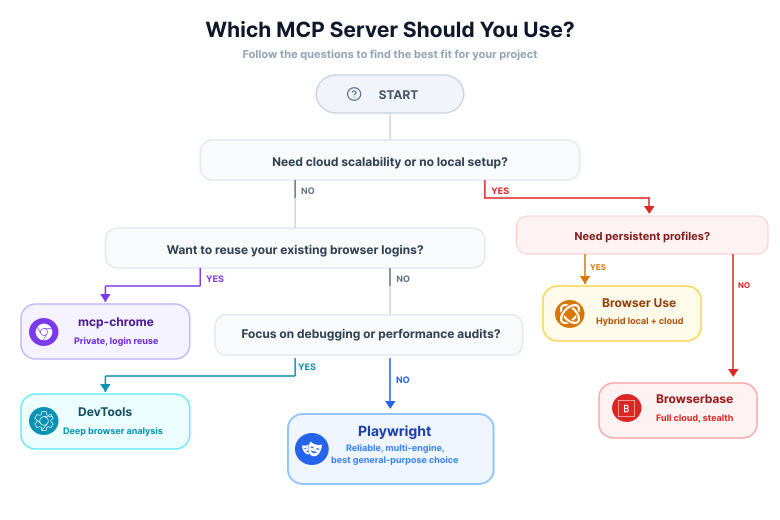
Start with the browser context.
- Fresh local browser: choose Playwright MCP.
- Managed cloud browser: choose Browserbase MCP.
- Existing local Chrome session: choose mcp-chrome.
- Persistent profiles and longer tasks: choose Browser Use MCP.
- Live customer session: choose Webfuse MCP.
- Debugging and performance analysis: choose Chrome DevTools MCP.
If you are comparing MCP servers against broader browser-agent approaches, read our breakdown of agent browsers vs Puppeteer and Playwright.
Use stdio for local tools and streamable HTTP for persistent or remote setups. Keep both host and server updated, and treat origin allowlists as guardrails rather than a complete security boundary.
Conclusion
Playwright MCP is the default for local automation; the others fit hosted, persistent, live-session, or debugging workflows.
Frequently Asked Questions

Connect an agent to any web app
No signup, runs in your browser
Ready to let your AI agent act on the live web?
Headless browsers give your agent a copy of the web. Webfuse gives it the session your user is actually in — over MCP, with no install.
- No credit card
- Free forever plan
- Quick setup
Related Articles