Yes, you can co-browse a website you don't own, and you need neither the site owner's permission nor a line of their code.
Someone calls, stuck on page three of a government benefits form. They read field labels aloud, you guess at what is on screen, and eight minutes later neither of you knows which box was wrong. Screen sharing solves the visibility problem and adds another: their inbox, open tabs and desktop notifications arrive on your monitor along with the form.
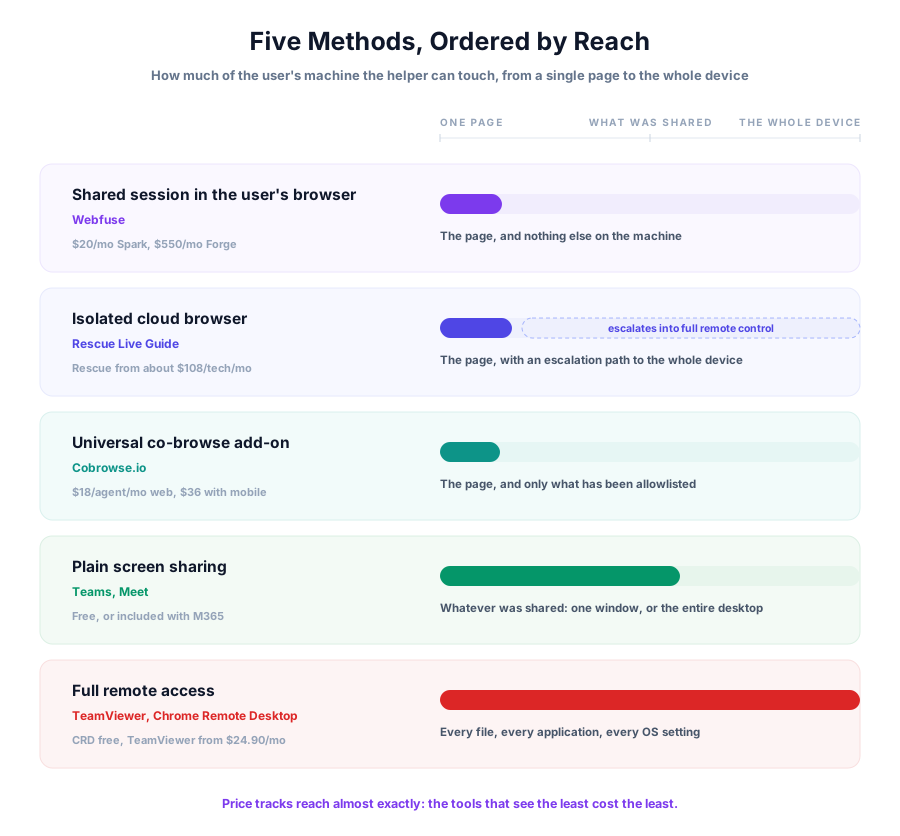
Co-browsing narrows what gets shared to the page itself. Older co-browsing needed a script embedded in the target site, which ruled out every site you don't control. These five methods do not, and they are ordered here by reach, from a single page up to the entire device:
- A shared session running the real site in the user's own browser
- An isolated cloud browser the agent drives
- A universal co-browse add-on
- Plain screen sharing
- Full remote access
Masking, control and cost change at every step down that list.
1. A shared session in the user's own browser (Webfuse)
The user opens a link and lands on the real site, in their own browser, under their own login. A helper joins that same session and can both see the page and act on it. Nothing gets installed, and the target site is never touched.
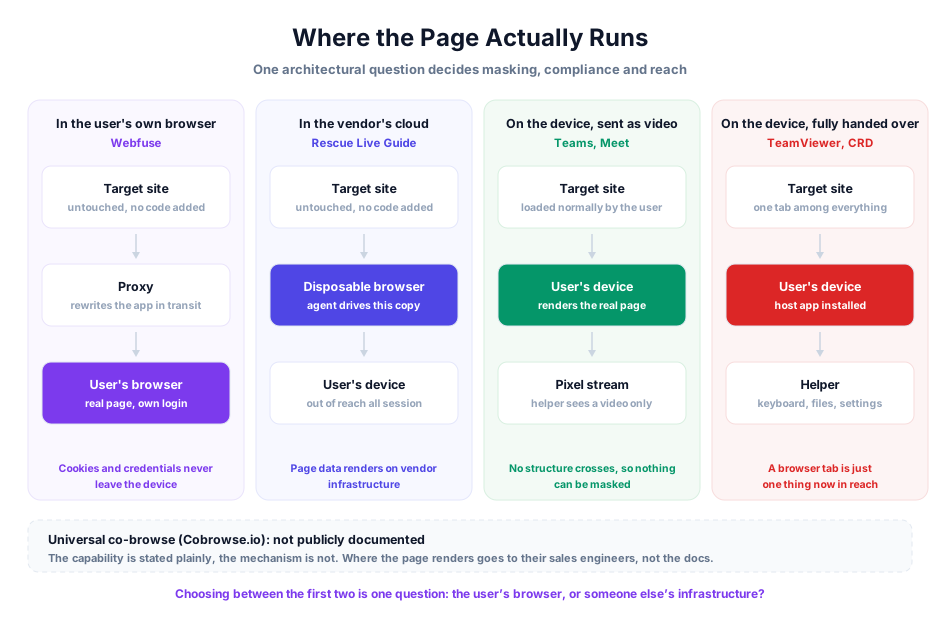
Underneath, a proxy sits between site and browser, rewriting the application code in transit and injecting a layer the helper connects to. Cookies and credentials stay in the user's browser. The site owner is not involved and does not need to be.
What separates this from a pixel stream is what the helper's tooling can reach. The layer runs inside the page rather than outside it, so it sees the application the way the application sees itself:
- Framework internals. React Fiber and Angular Signals state, not just the rendered DOM, so clicks land where they are meant to on single-page apps.
- Closed Shadow DOM and iframes. Salesforce Lightning Web Components block outside tools by design; an in-page layer traverses them.
- Element-level masking. Fields can be hidden or obfuscated by CSS selector before anything reaches a human agent or a model.
- An audit log. Every step in the session can be written to a record, which is the first thing compliance teams ask about.
Sandboxing rewrites the domain, so domain.com gets served as domain-com.webfuse.com, and session tokens tied to the original domain do not carry across without a migration step. The origin server sees the proxy's IP rather than the user's, which strict WAF rules may reject until that range is allowlisted. Starting a session also costs a moment while the layer is injected.
This fits regulated support work: banks, insurers and healthcare teams that need the audit trail and the redaction, plus anyone whose target site is a heavy single-page app that simpler tools mishandle.

2. An isolated cloud browser (LogMeIn Rescue Live Guide)
Live Guide connects the session to a disposable browser running in LogMeIn's cloud, and the agent drives that copy rather than the page on the user's device. The user's own machine stays out of reach for the entire session, which is the whole point of the design.
Getting started takes three steps and no download:
- The agent generates a PIN or a session URL.
- The customer enters the PIN on a Rescue landing page, or opens the link.
- Their browsing connects to the cloud instance, where the agent can see and drive it.
Control is deliberately narrow. Administrators can mask fields, block specific buttons so that an agent can never press "Buy Now", and stop agents typing into forms at all. When a problem turns out to be bigger than the webpage, the session escalates into full Rescue remote control, and that escalation path is why contact centers buy the suite rather than the module.

Cost is the sticking point. Rescue starts near $108 per technician per month billed annually, and LogMeIn publishes no separate price for Live Guide, so the module arrives attached to a suite costing more than most co-browsing tools do on their own. The second question is where trust sits: the session runs on the vendor's infrastructure rather than in the user's browser, which makes for a different compliance conversation than a model where page data never leaves the device.
Best suited to large support organizations already standardized on Rescue, or teams needing a zero-download route onto any third-party site with escalation waiting behind it.
3. A universal co-browse add-on (Cobrowse.io)
Cobrowse.io was built for a company's own web and mobile apps, added through an SDK. Universal co-browse is the mode that reaches past those boundaries, onto third-party sites, mobile apps and content such as PDF files, with nothing added to the site in question.
The difference sits in the default. Nothing leaves the user's device unless it has been explicitly allowlisted, which inverts the usual arrangement where everything is shared and sensitive fields get masked afterwards. For a bank or a clinic, that inversion is the reason to look: a field nobody thought about stays private by accident instead of leaking by accident.

Pricing is public and unusually clear for this category. Web co-browse runs $18 per agent per month billed annually, web plus mobile app co-browse runs $36, and enterprise terms cover large agent counts, alternate licensing and self-hosting. Deployment can sit with a cloud provider and region you choose, or fully on-premise. The vendor lists ISO 27001, SOC 2, GDPR, CCPA and HIPAA compliance.
What the public documentation does not spell out is how universal co-browse works on a site the SDK was never installed on. The capability is stated plainly; the mechanism is not. If your evaluation depends on knowing exactly where the page renders and what crosses the network, that goes to their sales engineers rather than being settled from the docs.
Best for teams that already want privacy-first co-browsing inside their own product, with third-party guidance as an occasional need rather than the main event.
4. Plain screen sharing (Microsoft Teams, Google Meet)
Most guidance happens this way, and for a five-minute question it does the job. The helper watches a video of the user's screen and talks them through it. No setup, no procurement, no new vendor to approve.
The catch is that a pixel stream carries no structure. Nothing on the page can be masked automatically, since the tool has no idea a password field is a password field; the user has to remember to hide things themselves, mid-call, while already confused by the form in front of them. Share a full desktop and notifications, open tabs and file names arrive on the helper's monitor too.
Handing over control has sharper limits than most people expect:
- Control follows what you shared. Share one window and control stops at that window. Share the whole screen and the other person has the whole screen.
- Desktop app on both sides. Microsoft documents that giving and taking control does not work when either party is running Teams in a browser.
- A GPU requirement. The Give Control menu depends on hardware acceleration being available, which is why the option sometimes greys out with no explanation.

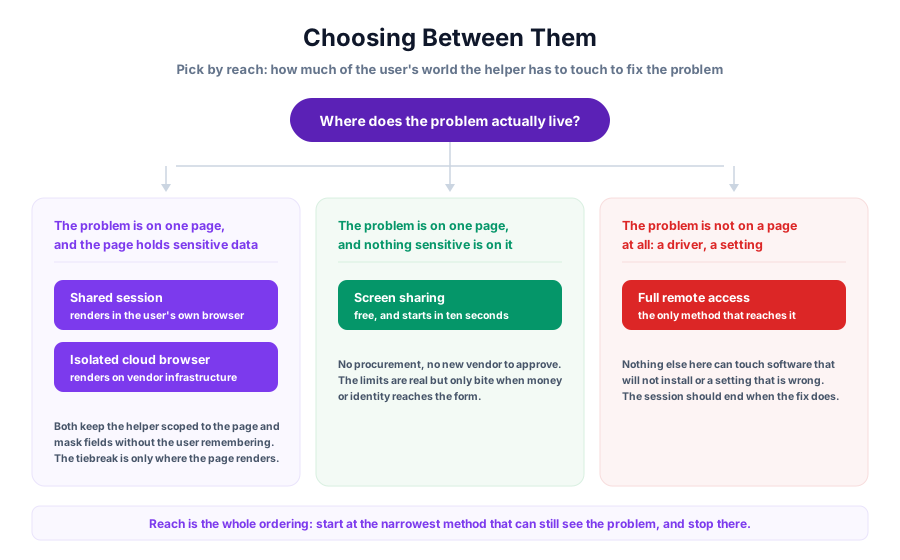
Good for quick, low-stakes help where nothing sensitive is on screen and the helper is someone the user already trusts. It becomes the wrong tool the moment a form asks for a bank account number.
5. Full remote access (Chrome Remote Desktop, TeamViewer)
Remote access gives the helper the entire machine: keyboard, mouse, files, settings, everything the user could do themselves. A browser tab is just one of the things now within reach.

The user installs a host application or runs a temporary support module, reads out an access code, and control passes over. Chrome Remote Desktop is free and fine for helping a parent with a printer. TeamViewer's single-user Remote Access plan starts at $24.90 per month billed annually and covers up to three managed devices, with unattended access to machines nobody is sitting at.
Scope is the problem. Granting device control hands over:
- Every file, not the page in the browser.
- Every application, including anything already logged in.
- OS settings, drivers and installed software.
- No field masking or button blocking, since neither concept exists at this layer.
Patching is part of the deal. TeamViewer's bulletin TV-2026-1008, published 26 August 2026, describes CVE-2026-16444: a participant in a remote session could send a filename containing path traversal sequences through file transfer or the virtual file clipboard, writing files outside the intended download folder, with code execution possible at the user's privileges. The fix is version 15.81.5, and TeamViewer reports no evidence of exploitation in the wild.

Right for IT support where the fault sits in the device rather than the webpage. Wrong for guiding a customer through a form, and the distance between those two jobs is where most of this category's risk lives.
Choosing between them
Pick by reach: how much of the user's world the helper has to touch to fix the problem. Two of the five keep the helper scoped to the page and mask fields without the user having to remember anything mid-call; the difference between them is whether the page renders in the user's own browser or on the vendor's infrastructure.
Price tracks reach almost exactly. The tools that see the least cost the least.
| Method | Customer installs | Helper can reach | Price from | Best for |
|---|---|---|---|---|
| Shared session in the browser (Webfuse) | Nothing, just a link | The page | $20/mo | Governed support on complex web apps |
| Isolated cloud browser (Rescue Live Guide) | Nothing, a PIN or link | The page, can escalate to the device | ~$108/tech/mo | Contact centres needing an escalation path |
| Universal co-browse (Cobrowse.io) | Nothing on the third-party site | The page | $18/agent/mo | Privacy-first support teams |
| Screen sharing (Teams / Meet) | Nothing | Whatever was shared | Free tier | Casual, low-stakes help |
| Full remote access (TeamViewer / CRD) | A host app | The whole device | Free (CRD) | Device-level IT support |
Frequently Asked Questions

Next Steps
Connect an agent to any web app
No signup, runs in your browser
Ready to let your AI agent act on the live web?
Headless browsers give your agent a copy of the web. Webfuse gives it the session your user is actually in — over MCP, with no install.
- No credit card
- Free forever plan
- Quick setup
Related Articles